
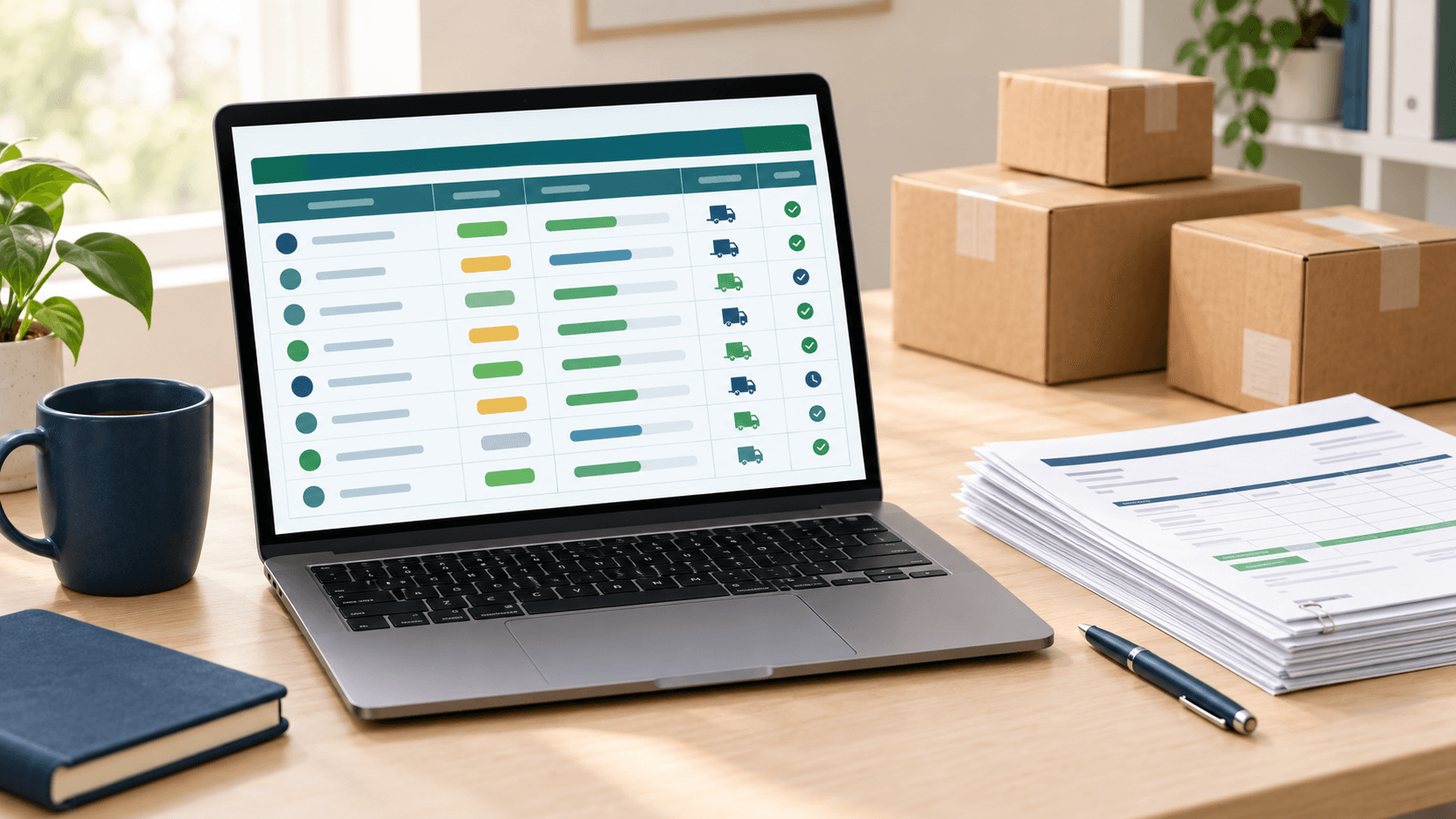
Supplier Tracker in Google Sheets: 7 Simple Steps
A supplier tracker in Google Sheets gives a small business one place to see who provides what, whether the supplier is approved, which payment terms were agreed, and how recent orders performed. Without a current record, staff may create duplicate vendor entries, overlook an expected delivery, or rely on an old contact email. Download the template below to start with a ready-made Suppliers and Purchases workbook — one row per supplier, one row per purchase order, with spend, lead-time, and open-order formulas already in place. Import a copy to Google Sheets or use it in Excel, then customize categories and statuses to fit your business. It is a recordkeeping workflow—not a vendor verification service, procurement policy, or guarantee that a supplier meets legal or industry requirements.
Download the supplier tracker template
Use the Excel workbook as-is, or upload it to Google Drive and open it with Google Sheets. Add one row per supplier on the Suppliers tab and one row per purchase order on the Purchases tab. Keep bank details and tax IDs out of the shared sheet.
How to Use the Downloaded Template
The workbook has three tabs: Start Here, Suppliers, and Purchases. Headers are in row 1 on each data tab, matching the steps below. Yellow cells are for your entries; green cells calculate automatically. No macros are included.
- Suppliers tab: Add one row per supplier with a stable ID (SUP-001, SUP-002…). Set Status from the dropdown. Columns N–Q (Overall Score, Received Spend, Open PO Count, Average Actual Lead Days) calculate automatically.
- Purchases tab: Add one row per purchase order using the same Supplier ID. Pick Status from the dropdown. Column H (Actual Lead Days) calculates from Order Date and Actual Delivery. Overdue orders are highlighted automatically.
- Review monthly: Check open orders, late deliveries, unusual spend, and ratings. Restrict access and keep sensitive payment data in an access-controlled system.
supplier tracker in google sheets
A supplier tracker in Google Sheets is a workbook that organizes supplier IDs, company and contact details, categories, approval status, payment terms, delivery expectations, purchase orders, and review notes. Keep one row per supplier, link each order by supplier ID, and use dropdowns and formulas to summarize spend, open orders, and delivery history.
Build a Supplier Tracker in Google Sheets in 7 Steps
- Decide what the tracker should answer. Start with a short list: Who is the supplier? What do they provide? Are they currently approved for use? What terms and delivery expectations were recorded? Which orders are still open? A useful supplier tracker in Google Sheets is a directory and review aid; it should not become a second accounting system or a place to store every confidential document. Assign each supplier a stable ID such as SUP-001. Do not use a company name as the ID because names can change or be entered with different spellings. Use the ID to connect the supplier record to purchase orders.
- Create a Suppliers tab with one row per supplier. Add these headers in row 1:
Supplier ID | Company Name | Category | Main Contact | Email | Phone | Status | Payment Terms | Standard Lead Time (Days) | Last Review Date | Quality (1–5) | On-Time (1–5) | Communication (1–5) | Overall Score | Received Spend | Open PO Count | Average Actual Lead Days | Notes. Keep dates as real date values and ratings as numbers. This supplier tracker in Google Sheets keeps reference data separate from order history. Use a secure file link for contracts, insurance records, or other paperwork rather than copying sensitive details into an open sheet. The IRS’s business recordkeeping guide explains why invoices, receipts, and payment evidence should be kept with business records. The tracker can link to those supporting documents, but a spreadsheet row does not replace them. - Standardize categories and supplier status. Set up dropdowns so “Approved” is not also entered as “approved,” “OK,” or “Active.” For Status, use choices such as
Under Review,Approved,On Hold, andInactive. For Category, use labels that fit your business—such as Materials, Software, Repairs, Office Supplies, or Professional Services. In Google Sheets, select the cells and use Insert → Dropdown or Data → Data validation; Google’s dropdown list instructions cover both a list of items and a list from a range. Only the person responsible for approval should change the status to “Approved.” These rules help a supplier tracker in Google Sheets stay searchable as the vendor list grows. - Keep repeat orders in a separate Purchases tab. One supplier may have dozens of purchase orders, so do not add a new set of order columns to the supplier’s master row each time. Create a second tab with these headers:
PO Number | Supplier ID | Order Date | Expected Delivery | Actual Delivery | Amount | Status | Actual Lead Days | Invoice / PO Link | Notes. Use one row per purchase order. A supplier tracker in Google Sheets can then show each order without duplicating vendor details. Add a dropdown for Status:Draft,Ordered,Partially Received,Received, orCancelled. Use the same Supplier ID as the Suppliers tab, and link to the purchase order or invoice stored in a restricted folder. - Add formulas for lead time, spend, and open orders. In
Purchases!H2, enter this formula and copy it down to calculate calendar days from order to receipt:=IF(OR(C2="",E2=""),"",E2-C2)
It stays blank until both dates exist. InSuppliers!N2, calculate an average of the three review scores with:=IF(COUNT(K2:M2)=0,"",ROUND(AVERAGE(K2:M2),1))
InSuppliers!O2, total the value of orders marked Received for the supplier ID in A2:=SUMIFS(Purchases!$F$2:$F$1000,Purchases!$B$2:$B$1000,$A2,Purchases!$G$2:$G$1000,"Received")
InSuppliers!P2, count orders that are Ordered or Partially Received:=COUNTIFS(Purchases!$B$2:$B$1000,$A2,Purchases!$G$2:$G$1000,"Ordered")+COUNTIFS(Purchases!$B$2:$B$1000,$A2,Purchases!$G$2:$G$1000,"Partially Received")
ForSuppliers!Q2, average recorded lead days:=IFERROR(AVERAGEIF(Purchases!$B$2:$B$1000,$A2,Purchases!$H$2:$H$1000),"")
Google’s SUMIFS help page explains the sum and criteria ranges. The lead-time formula returns calendar days; if your business needs workdays, define that rule consistently before comparing vendors. These calculations make the supplier tracker in Google Sheets more useful for a quick review, but they do not replace checking invoices or delivery records. - Highlight items that need attention. Freeze row 1, turn on filters, and use conditional formatting on the Purchases tab to flag overdue orders. If the expected delivery date is in column D, the status is in G, and the PO number is in A, apply this custom formula to the data rows:
=AND($D2<TODAY(),$G2<>"Received",$G2<>"Cancelled",$A2<>"")
Choose a noticeable fill color and add a separate rule for supplier review dates that are due. Google’s conditional-formatting instructions explain how to set rules for cells or rows. A colored warning is a prompt to check the order—not proof that a supplier failed or that a contract was breached. This keeps the supplier tracker in Google Sheets actionable instead of just a static vendor list. - Review the records and restrict access. Update contact details and terms when a change is confirmed; record the date and who confirmed it. At a monthly review, check open orders, late deliveries, unusual spend, and supplier ratings. Keep bank account numbers, tax IDs, passwords, and payment credentials out of a broadly shared supplier tracker in Google Sheets. Store confidential onboarding and payment data in an access-controlled system, and independently verify any request to change payment instructions using a known contact channel. Use the ratings as your own consistent notes, not as an industry certification or an automatic decision to retain or reject a supplier.
Worked Example: Track One Supplier and Two Orders
Suppose a fictional repair shop adds Oakline Office Supply as SUP-001. The shop records two completed orders in the Purchases tab. Each order links back to the same supplier ID, so the master directory can summarize the history without duplicating the contact record.
| PO Number | Supplier ID | Order Date | Expected | Received | Amount | Status | Actual Lead Days |
|---|---|---|---|---|---|---|---|
| PO-101 | SUP-001 | Mar 2 | Mar 7 | Mar 8 | $280.00 | Received | 6 |
| PO-102 | SUP-001 | May 1 | May 6 | May 6 | $120.00 | Received | 5 |
The supplier tracker in Google Sheets connects both orders to one vendor record. The Received Spend formula returns $400.00, and Average Actual Lead Days returns 5.5. The first order arrived one calendar day after its expected date; the second arrived on the expected date. These figures are a record of two orders, not a guarantee of future performance. A brief note can explain a delay, replacement, or quality issue so the next review has context.
Once reviewed, the purchase data can support a broader view of operating costs. Compare it with your monthly profit and loss in Google Sheets; the supplier tracker is a detail register, not the complete financial statement.
Next Step: Start with Your Current Suppliers
Download the template above, assign each current vendor a unique ID on the Suppliers tab, then add the Purchases tab for orders that are still open or recently completed. A supplier tracker in Google Sheets is ready for a first review once every active vendor has an ID, status, and current contact. Check each status and payment term against a current document before relying on it. If your vendor and expense records are already scattered, begin with this bookkeeping cleanup checklist and use the guide to clean up messy bookkeeping records to organize the source information first. And put the supplier review on the same monthly rhythm as your month end close checklist — a vendor list only stays useful if something forces it to be read.
Frequently Asked Questions
What should a supplier tracker include?
Include a supplier ID, company name, category, contact details, status, payment terms, standard lead time, review date, performance notes, and links to relevant records. A separate purchase log can capture PO number, order and delivery dates, amount, status, and invoice link.
Should I keep purchase orders on the supplier master tab?
Usually, keep one supplier per row on the master tab and store each purchase order on a separate tab. Connecting the tabs by Supplier ID makes it easier to summarize repeat orders without adding endless columns or duplicate supplier records.
How can I calculate supplier spend in Google Sheets?
Use SUMIFS to add order amounts where the Supplier ID matches and the order status is Received. If you want the value of all orders instead of received spend, label that metric clearly and choose the statuses to include.
Can the tracker score supplier performance?
It can hold a consistent internal rating for quality, on-time delivery, and communication. Define what each score means, review evidence before changing it, and avoid treating a small number of orders as a definitive scorecard.
Should I store bank details or tax IDs in the tracker?
Do not put sensitive payment credentials or tax identifiers in a broadly shared spreadsheet. Keep them in a properly access-controlled system and limit access to people who need the information. Verify payment-instruction changes through a known channel.
This spreadsheet workflow is for organizing supplier and purchase records. It does not verify a vendor, determine legal or tax compliance, or replace accounting, procurement, or security procedures. Requirements differ by location and industry; confirm specific obligations with a qualified adviser.