
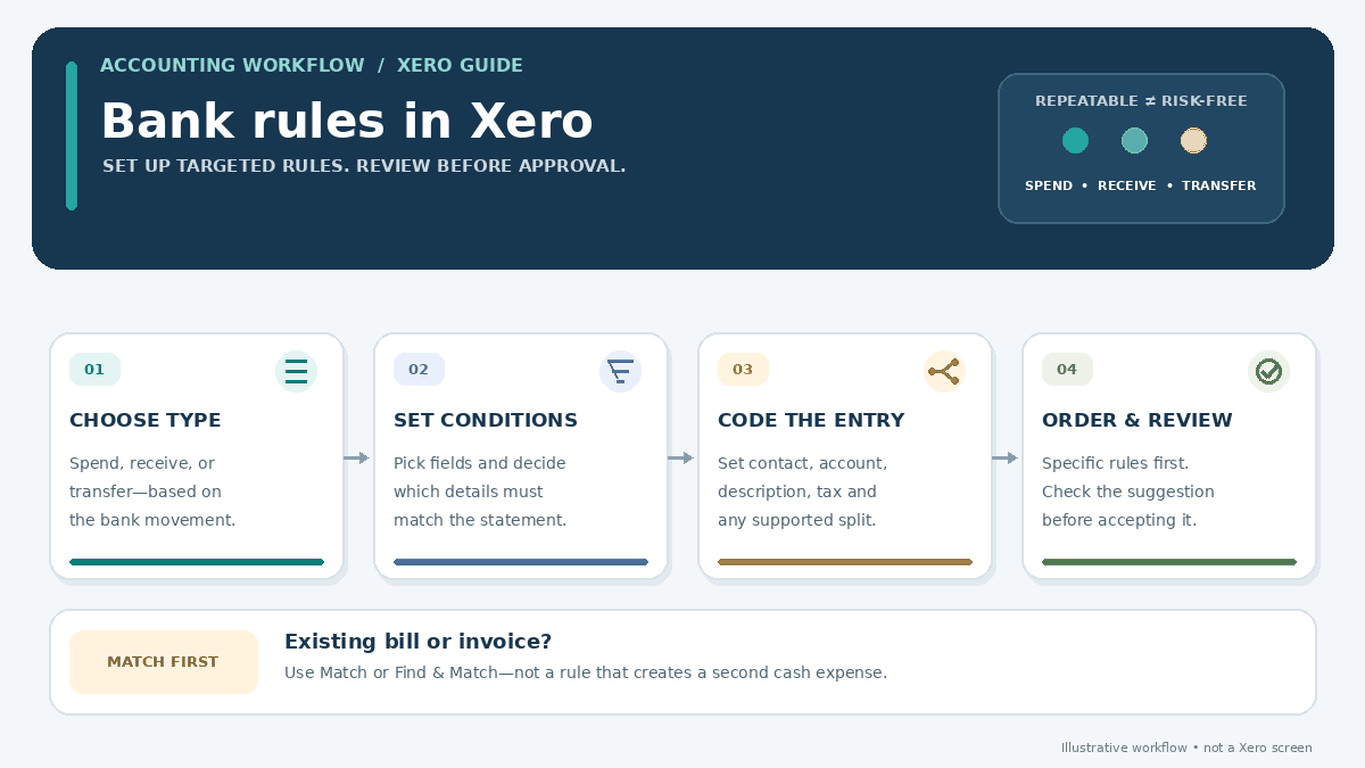
Bank rules in Xero can save time on recurring statement lines, but only when the rule describes the transaction accurately. Use a rule for a new cash item or a suitable transfer—not to create a second expense for a bill that is already in Xero. This seven-step method covers rule types, conditions, coding, splits, ordering, and review.
Menu labels and available features can change by organisation, subscription, region, and Xero updates. Check the current organisation and Xero Central guidance before making changes. The aim of bank rules in Xero is consistent suggestions, not automatic certainty.
What bank rules in Xero do—and what they do not do
Bank rules in Xero save conditions and transaction details for repeatable bank-statement activity. When an imported line meets the conditions, Xero can suggest a Spend Money, Receive Money, or Transfer transaction with details such as the payee, description, account, and tax rate. The suggestion still needs a review against the statement and supporting records.
Bank rules in Xero are most useful for recurring cash transactions that do not have an existing invoice, bill, expense claim, or other Xero transaction waiting to be matched. A recurring bank fee or a subscription paid directly from the bank account may suit a rule if the description and coding are stable. A customer invoice payment or supplier bill payment should generally be matched to its existing record instead.
A rule does not prove that a bank line belongs to a particular supplier, account, or tax treatment. It can repeat an error if the conditions are broad or the details were copied from the wrong transaction. Treat bank rules in Xero as a way to prepare a suggestion; the person reconciling the line remains responsible for checking it. Xero explains rule behaviour in its About bank rules guide.
Should you create a rule or match the existing transaction?
Before setting up bank rules in Xero, identify what the statement line represents. If Xero already contains the invoice, bill, claim, or transaction, use Match or Find & Match. Creating a rule that adds a second cash transaction can duplicate income or expense and leave the original document unpaid or unreconciled.
| Statement line represents | Usual action | Check first |
|---|---|---|
| Payment for an invoice, bill, or claim already recorded | Match the existing item; search with Find & Match if needed. | Confirm contact, date, amount, and reference. |
| New recurring fee, subscription, or cash receipt | Consider a Spend Money or Receive Money rule. | Verify source evidence, account coding, and tax treatment. |
| Funds moving between your own accounts | Use a Transfer transaction or suitable transfer rule. | Confirm the destination account; do not code it as income or expense. |
| Unknown deposit, combined settlement, or unclear charge | Pause, investigate, or ask for documentation. | Do not create a guessed transaction merely to clear the line. |
If the correct invoice or bill is already in Xero but is not suggested, search using Find & Match. This is safer than creating a rule or new cash entry for the same payment. For a deposit before an invoice exists, follow the appropriate prepayment or overpayment workflow rather than forcing an unrelated match.
Bank rules in Xero: 7 steps to set up and review a rule
- Confirm the transaction is appropriate for a rule. When setting up bank rules in Xero, start with a real bank-statement line and source evidence. Check whether an invoice, bill, expense claim, or cash transaction is already recorded. Rules are generally for repeatable cash activity that is not already represented by a document to match. This first check helps prevent duplicate entries.
- Choose the rule type. For bank rules in Xero, select Spend Money for a qualifying payment leaving the account, Receive Money for a qualifying receipt, or Transfer for movement between two accounts owned by the organisation. The type should reflect the movement and its business purpose—not simply the direction on screen. A transfer is not revenue or an operating expense.
- Open the rule setup in your organisation. Xero Central describes creating a rule from a reconciliation line through its Options menu, or from the Bank rules screen (commonly under Accounting > Bank rules). The route and labels can shift. Follow the current interface and check the selected bank account before saving.
- Build conditions from the bank’s actual description. Good bank rules in Xero use the fields that the feed populates, such as Payee, Description, Reference, or Amount. Choose a stable identifier and include enough conditions to avoid matching unrelated transactions. Do not assume that a supplier name always appears in the same field across accounts or banks.
- Enter the transaction details. When you use bank rules in Xero, review each suggestion’s contact, reference, description, account code, tax rate, and any tracking fields used by the organisation. Base them on the receipt, statement, contract, or approved accounting process. Reusing a past rule’s coding without checking the current transaction can carry an old mistake forward.
- Set any supported allocation or split deliberately. If a recurring cash transaction genuinely needs more than one account code, use the split or amount-allocation options available for that rule. Verify each portion, description, and tax treatment against the supporting document. Do not add a split just to make a difference disappear.
- Order, save, and review the suggestion. Put the more restrictive rule above a broader one, save it, then check the first matching lines before relying on it. Confirm the contact, account, tax, description, amount, and transfer destination. Edit or decline the suggestion when evidence does not agree.
For a clean setup of bank rules in Xero, document why the rule exists and what should happen when a line does not match. A note is especially helpful when another person handles reconciliation later. Xero’s Create a bank rule instructions describe current setup options and rule ordering.
How to choose conditions: All, Any, Equals, Contains, or Starts with
Conditions determine when a rule is offered. Two separate choices matter: whether All or Any conditions must be met, and how each field is compared. A rule that is too broad can create the wrong suggestion; one that is too narrow may stop matching after a bank changes its statement wording.
| Condition setting | Meaning | Use with care |
|---|---|---|
| All | Every listed condition must match. | Helpful when a supplier name and a stable reference together identify the item. |
| Any | One of the conditions can trigger the rule. | Broader; use only when each condition is safe on its own. |
| Equals | The selected field must match the specified text. | Restrictive, but may stop matching if the bank wording changes. |
| Contains / Starts with | The field includes the phrase or begins with it. | Can handle variations but may match more lines; not automatically safer than Equals. |
For example, “CloudCo monthly plan” may be a more useful pattern than the generic word “online.” A rule based only on “fuel,” “subscription,” or “transfer” may also catch transactions that need a different account or contact. When using bank rules in Xero, test the chosen fields against several real lines, including a similar-looking line that should not match.
Use All when every condition must match. Use Any only if each separate condition is sufficiently unique. If the bank has variable references, choose a stable part of the correct field rather than adding a broad term to every text field. Xero explains how conditions combine in its bank-rule guidance.
Set coding and split allocations from evidence
A good rule should fill in the transaction details that genuinely repeat. Depending on the setup, bank rules in Xero may use a fixed amount or a portion of the statement line, and can split an amount across different account codes with separate descriptions and tax rates. Availability and exact controls can depend on the rule type and current interface.
Consider a recurring service payment that contains two separately supported charges. If the supplier statement consistently identifies those portions, a split may save repetitive entry. Keep the rule aligned with the actual statement and approved coding. If the amount changes or the line combines unrelated purchases, review it manually rather than applying a fixed split that no longer fits.
Do not copy tax rates from an unrelated example. Tax treatment depends on the underlying supply, the organisation, and applicable local rules. This guide does not assign tax rates; ask the responsible bookkeeper or accountant when the evidence or treatment is unclear. Bank rules in Xero can repeat incorrect coding quickly, so test the whole result before accepting it.
Order rules, test them, and review each result
Xero evaluates matching bank rules in list order. When maintaining bank rules in Xero, put a specific rule above a broad rule that could also match the line. If the general rule is first, it may produce a suggestion before the more appropriate specific rule is considered. Review the order after creating or changing rules, not only when the first rule is added.
- Rule does not appear: check the selected bank account, the statement field used by the condition, spelling, reference changes, and whether All/Any logic is too restrictive.
- Wrong rule appears: inspect broad terms, Any conditions, Contains/Starts with comparisons, and rules higher in the list. Do not accept the suggestion until the coding is understood.
- Several rules appear to overlap: compare their conditions using real bank descriptions, make the intended rule more specific, and reorder the list. Avoid maintaining duplicate rules that do the same thing.
- A line was already reconciled incorrectly: review the related transaction and correct it using the current Xero workflow. The appropriate action depends on whether an invoice, bill, or cash transaction was created and reconciled.
- Unclear transaction: leave it for investigation and obtain the source document. A rule is not a substitute for knowing what the bank movement represents.
Bank rules in Xero normally offer a suggested transaction for review during reconciliation; they are not the same as automatic reconciliation. Some organisations may have the separate JAX-powered automatic reconciliation feature, whose availability and behaviour can depend on plan and settings. Review the result and exceptions even if automation is enabled. See Xero’s JAX guidance.
For a recurring rule, periodically review whether the supplier, account, amount pattern, and statement wording still fit. A rule can remain technically active after the business relationship or coding policy changes. A brief review at month end is a practical control; it is not proof that every other part of the accounts is correct.
Examples of bank rules in Xero: when a rule may help
- Regular bank fee: a stable fee appears in the statement and there is no bill to match. A Spend Money rule may suggest the approved bank-fee coding; confirm the amount and account.
- Monthly software subscription: if payment is made directly from the account and no bill is entered, a rule may suggest the recurring supplier and account. If the business records a bill first, match the statement payment to that bill instead.
- Interest received: a Receive Money rule may help with a repeatable interest entry. Verify the bank description and the organisation’s accounting treatment.
- Transfer between own accounts: a Transfer rule may suit a consistent movement to another bank account. Confirm the target account and make sure it is not recorded again as income or expense.
These examples are prompts, not recommended account or tax codes. Always follow the supporting documents and internal policy.
Frequently asked questions
Do bank rules in Xero automatically reconcile every matching line?
Typically, a bank rule creates a suggestion that should be reviewed during reconciliation. Separate automatic-reconciliation features may be available to some organisations and can depend on plan or settings. Check the current Xero controls, review processed lines, and investigate exceptions.
Should I use a bank rule for a supplier bill?
If the bill is already recorded in Xero, match the bank line to the bill. Use Find & Match if it is not suggested. A rule that creates another cash expense can duplicate the cost and leave the bill outstanding.
Is Contains always safer than Equals?
No. Contains may accommodate variable statement wording but can match more transactions; Equals is more restrictive but may be brittle if the wording changes. Test conditions against real statement lines and use the narrowest reliable logic.
Can a bank rule split one payment across accounts?
Xero documents split and allocation options for bank rules. Use them only when the portions, descriptions, and coding are supported by the source record. Review amounts and tax treatment rather than forcing a difference into a split.
How often should I review bank rules?
Review bank rules in Xero when you create them, after changing their conditions or coding, and periodically as part of reconciliation. Pay extra attention if the bank changes its statement descriptions, the supplier’s charge changes, or another rule overlaps it.
Related bookkeeping guides
- How to clean up messy bookkeeping records
- Bookkeeping cleanup checklist
- Accrual vs. cash basis accounting