
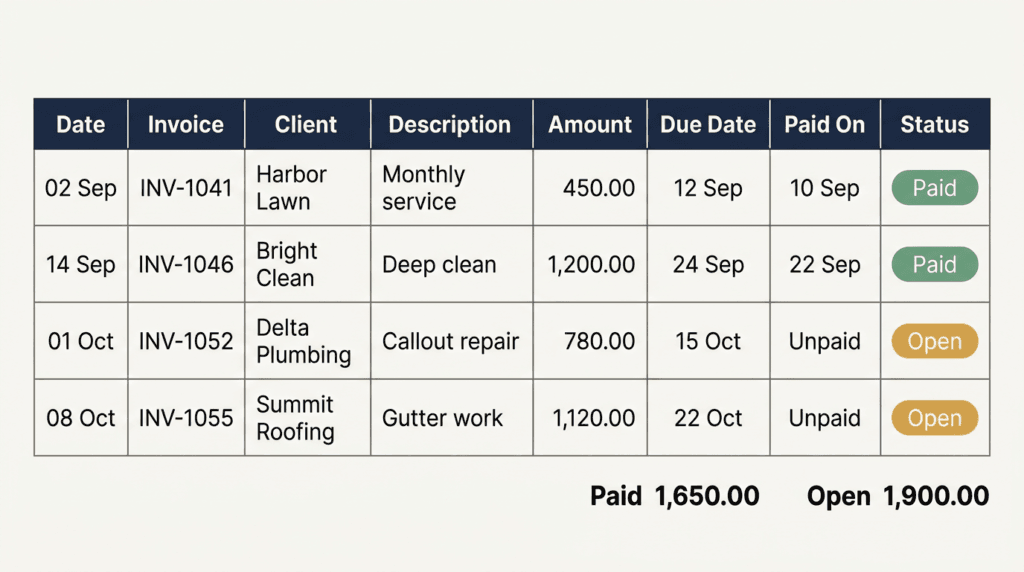
An invoice log template in Google Sheets is not accounting software and should not try to be. It does one job: it keeps a single, unbroken, numbered record of every invoice you have ever issued, so that when a customer says I never got invoice 114, you can answer in ten seconds instead of searching your email.
An invoice log template in Google Sheets costs nothing to run and never falls out of sync with itself. If you issue fewer than about two hundred invoices a year, this sheet is genuinely enough. Past that, you want proper software — but even then the log stays useful as the one place where the numbers are guaranteed to be sequential.
Table of Contents
ToggleWhat this guide covers
- Why the numbering matters most
- The eight columns
- Three formulas
- The summary tab
- What it deliberately does not do
- The free template
Why an invoice log template in Google Sheets lives or dies on numbering
Everything else in this sheet is convenience. The numbering is the reason it exists. A gap in your invoice numbers is the first thing a tax officer, a lender or an acquirer notices, and the most common cause is not fraud — it is a cancelled invoice that someone quietly deleted. UK invoicing rules require a unique identifying number on every invoice, and unique means never reused. You never delete a row from an invoice log. You mark it cancelled and leave the number burned.
That single discipline is worth more than any formula below.
These are the only fields an invoice log template in Google Sheets needs. Everything else is decoration.
The eight columns
| Column | Header | Notes |
|---|---|---|
| A | Invoice no. | Sequential, never reused, never deleted. |
| B | Invoice date | The date on the document, not the date you sent it. |
| C | Customer | Spelled identically every time, or your totals will split. |
| D | Description | Six words maximum. This is a log, not a contract. |
| E | Amount | The invoice total as issued. |
| F | Due date | Formula, from your standard terms. |
| G | Status | Dropdown: Sent, Paid, Partly paid, Cancelled. |
| H | Date paid | Blank until money actually lands. |
Three formulas do all the work in this invoice log template in Google Sheets. None of them is complicated.
Three formulas
Automatic numbering. In A3, assuming A2 holds your first number:
=IF(C3="","",A2+1)
The number appears only once you type a customer name. That stops phantom invoice numbers appearing every time you scroll.
Due date, for thirty-day terms, in F2:
=IF(B2="","",B2+30)
Change 30 to whatever you actually give. If your terms vary by customer, make F a typed column instead of a formula — a wrong automatic date is worse than a blank one.
Overdue flag, in I2:
=IF(AND(F2<>"",F2<TODAY(),G2<>"Paid",G2<>"Cancelled"),"OVERDUE","")
Note the two exclusions. Without them a cancelled invoice from last March will glare at you in red for the rest of its life.
Dropdowns
Select G2:G500, then use data validation in Google Sheets to add a dropdown, and enter exactly four options: Sent, Paid, Partly paid, Cancelled. Resist adding a fifth. Every extra status is a decision you will have to make on every future row, and the sheet gets slower to fill, which is how sheets die.
One colour rule
Select A2:I500, Format, Conditional formatting, Custom formula is:
=$I2="OVERDUE"
Light red fill. That is the only rule. Do not colour-code customers, do not colour-code amounts.
The summary tab of your invoice log template in Google Sheets
Add a second tab called Summary with six cells. These are the only numbers worth reading:
- Total invoiced:
=SUM(Log!E2:E) - Total collected:
=SUMIF(Log!G2:G,"Paid",Log!E2:E) - Still outstanding:
=SUMIFS(Log!E2:E,Log!G2:G,"<>Paid",Log!G2:G,"<>Cancelled") - Overdue count:
=COUNTIF(Log!I2:I,"OVERDUE") - Invoices this month:
=SUMPRODUCT((MONTH(Log!B2:B)=MONTH(TODAY()))*(YEAR(Log!B2:B)=YEAR(TODAY()))) - Average days to pay:
=AVERAGEIF(Log!H2:H,"<>",Log!H2:H)-AVERAGEIF(Log!B2:B,"<>",Log!B2:B)
The last one is the number almost nobody tracks and the one that predicts cash trouble. If your average days to pay drifts from eighteen to thirty-four over a quarter, your customers have changed their behaviour and you are the last to know.
A good invoice log template in Google Sheets is defined as much by what it refuses to hold.
What this sheet deliberately does not do
- It does not create invoices. It records them. Use a document template for the invoice itself.
- It does not handle tax. If you need VAT or GST breakdowns per line, you have outgrown a spreadsheet.
- It does not track expenses. Money out belongs in the monthly profit and loss tab, not here.
- It does not chase anyone. That is the job of the pending payments sheet, which reads one summary number from this log and nothing else.
Keeping each sheet narrow is what keeps all of them alive. The moment the invoice log starts holding delivery status, it becomes a second, competing copy of the sales order tracker, the two disagree within a month, and you stop trusting both.
The monthly ten minutes
On the first working day of each month, do four things and nothing else:
- Check that column A has no gaps. If there is one, find out why today, not in March.
- Fill column H for everything that was paid last month.
- Read the Summary tab's outstanding figure out loud. Out loud matters; it is harder to dismiss.
- Copy the overdue names into your pending payments sheet.
The free invoice log template in Google Sheets
Build it from the table above — eight headers, three formulas, one dropdown, one colour rule. If you would rather have it built on your existing invoice history, with the old numbers imported in order and the gaps identified, message me from the contact page.
It is a boring file. That is the compliment. The invoice log you still trust in year three is the one that never tried to be a dashboard.